
WhatsApp Web is a powerful tool that lets you use WhatsApp on your computer, making messaging, file sharing, and communication more efficient. Whether you’re working, studying, or multitasking, mastering WhatsApp Web can save time and boost productivity. In this guide, we’ll share the best tips and tricks to help you use WhatsApp Web like a pro!
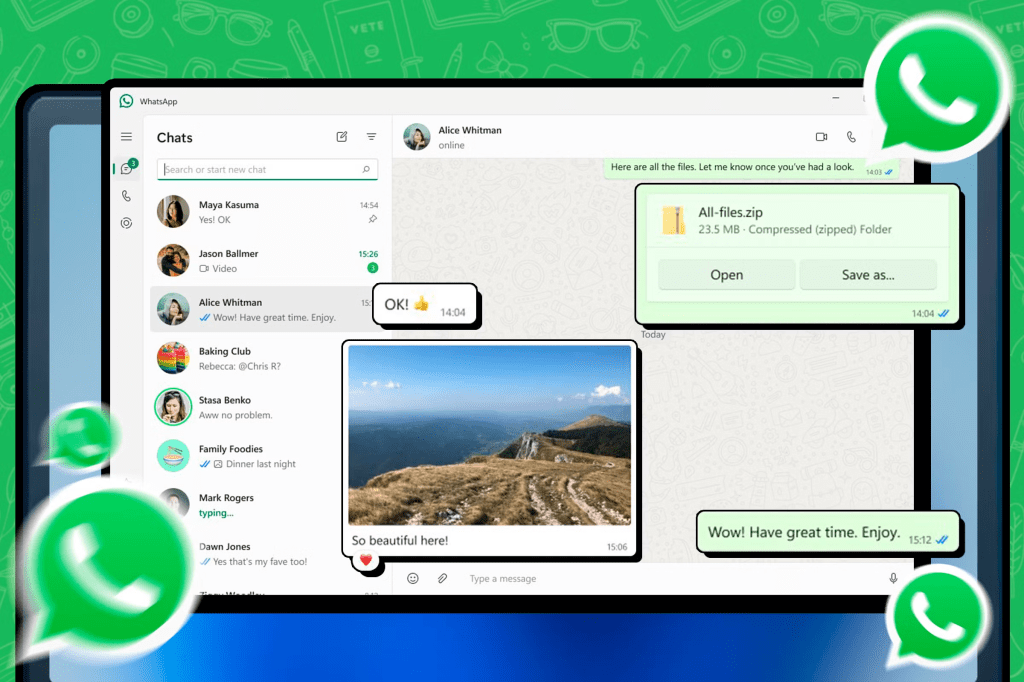
1. How to Access WhatsApp Web
Using WhatsApp Web is simple and doesn’t require any downloads.
Steps to Use WhatsApp Web:
- Open web.whatsapp.com on your browser.
- Open WhatsApp on your phone and tap the three-dot menu (Android) or Settings (iPhone).
- Select Linked Devices > Link a Device.
- Scan the QR code displayed on your computer screen.
- Your WhatsApp account will now be synced on your PC.
👉 Bonus Tip: You can link multiple devices and use WhatsApp Web even when your phone is offline!
2. Enable Dark Mode on WhatsApp Web
Dark Mode reduces eye strain and improves readability, especially at night.
How to Enable Dark Mode:
- Click on the three-dot menu at the top of WhatsApp Web.
- Go to Settings > Theme.
- Select Dark Mode and click OK.
3. Use Keyboard Shortcuts for Faster Navigation
Keyboard shortcuts make using WhatsApp Web more efficient. Here are some handy ones:
| Shortcut | Action |
|---|---|
| Ctrl + N | Start a new chat |
| Ctrl + Shift + [ | Switch to the previous chat |
| Ctrl + Shift + ] | Switch to the next chat |
| Ctrl + Backspace | Delete a chat |
| Ctrl + Shift + M | Mute a chat |
| Ctrl + Shift + U | Mark chat as unread |
| Ctrl + Shift + E | Archive chat |
| Ctrl + Shift + P | Pin chat |
👉 Pro Tip: Mastering these shortcuts will help you navigate WhatsApp Web faster than ever!
4. Send Files, Photos, and Videos Instantly
WhatsApp Web allows seamless file sharing between your PC and contacts.
How to Send Files on WhatsApp Web:
- Click on the paperclip icon in the chat.
- Select Documents, Photos, or Videos from your computer.
- Click Send.
👉 Quick Hack: You can drag and drop files directly into the chat to share them instantly!
5. Use WhatsApp Web Without a Phone (Multi-Device Mode)
WhatsApp now allows you to use WhatsApp Web without keeping your phone online.
How to Enable Multi-Device Mode:
- Open WhatsApp on your phone.
- Go to Settings > Linked Devices.
- Tap Multi-Device Beta and join.
- Now, link your WhatsApp Web as usual.
Your phone no longer needs to be connected for WhatsApp Web to work! 🎉
6. Enable Notifications for Instant Alerts
Stay updated by enabling desktop notifications.
How to Enable Notifications:
- Click on the lock icon in your browser’s address bar.
- Select Site Settings > Notifications.
- Choose Allow.
👉 Pro Tip: You can mute notifications for a set period if you don’t want distractions.
7. Search Messages and Chats Quickly
Finding past messages is easier with WhatsApp Web’s search feature.
How to Search Messages:
- Use Ctrl + F to find specific messages within a chat.
- Use the Search bar at the top to find contacts or keywords.
👉 Time-Saver: Use keywords like “image,” “PDF,” or “video” to find media files quickly.
8. Log Out Remotely to Stay Secure
For security reasons, it’s essential to log out when using WhatsApp Web on a shared computer.
How to Log Out Remotely:
- Open WhatsApp on your phone.
- Go to Settings > Linked Devices.
- Select the active session and tap Log Out.
👉 Security Tip: Always log out if you use WhatsApp Web on a public or shared computer.
9. Use Third-Party Extensions for Extra Features
Enhance WhatsApp Web’s functionality with browser extensions.
Best WhatsApp Web Extensions:
- WA Web Plus – Adds privacy features and customizations.
- Zapp – Keyboard Shortcuts – Enhances keyboard navigation.
- WAToolkit – Enables background notifications and message previews.
👉 Caution: Always use extensions from trusted sources to avoid security risks.
10. Customize Chat Wallpapers on WhatsApp Web
Make your chats more visually appealing by changing the wallpaper.
How to Change Chat Wallpaper:
- Click on the three-dot menu in WhatsApp Web.
- Go to Settings > Chat Wallpaper.
- Choose a solid color or upload an image.
Final Thoughts
WhatsApp Web is more than just a desktop version of WhatsApp—it’s a powerful tool to boost productivity, streamline communication, and enhance your messaging experience. By using these pro tips and tricks, you’ll get the most out of WhatsApp Web like a true expert. 🚀
Did we miss any hacks? Drop your favorite WhatsApp Web tip in the comments! 👇


 Techpadd
Leave a comment